Scan to Download
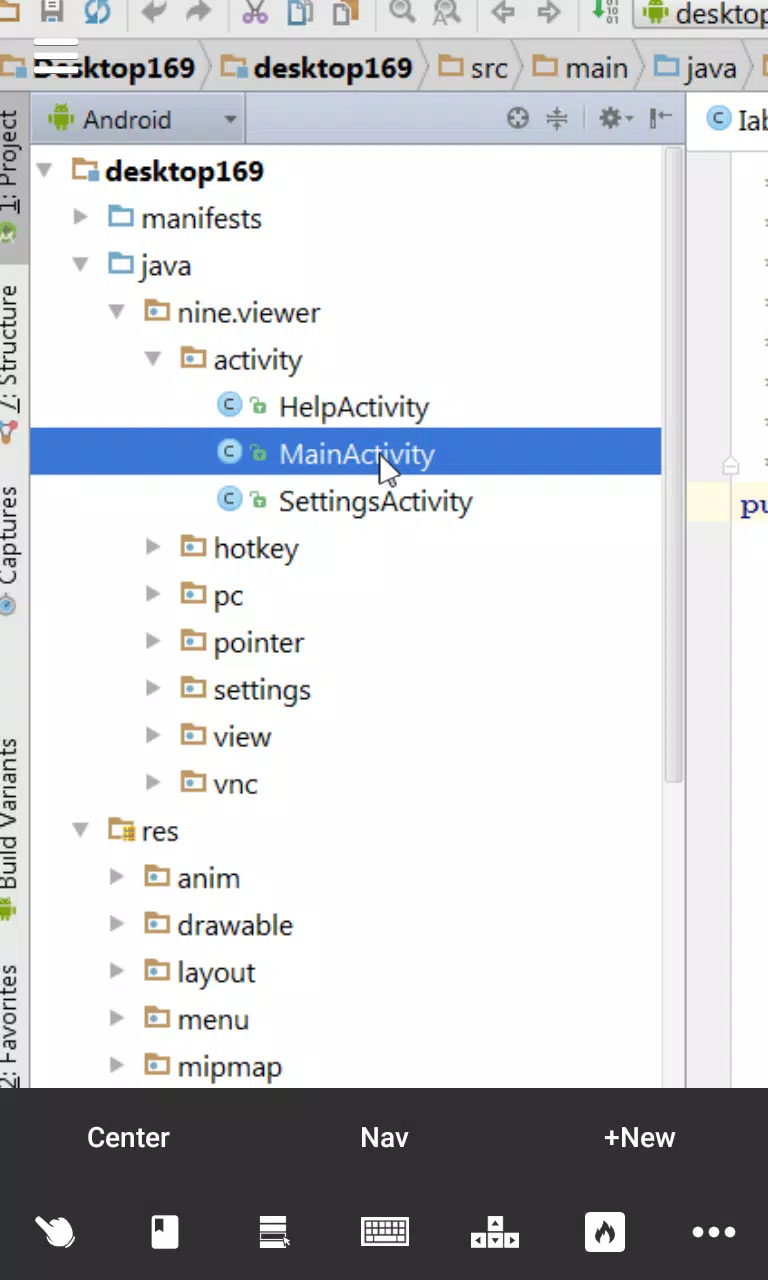
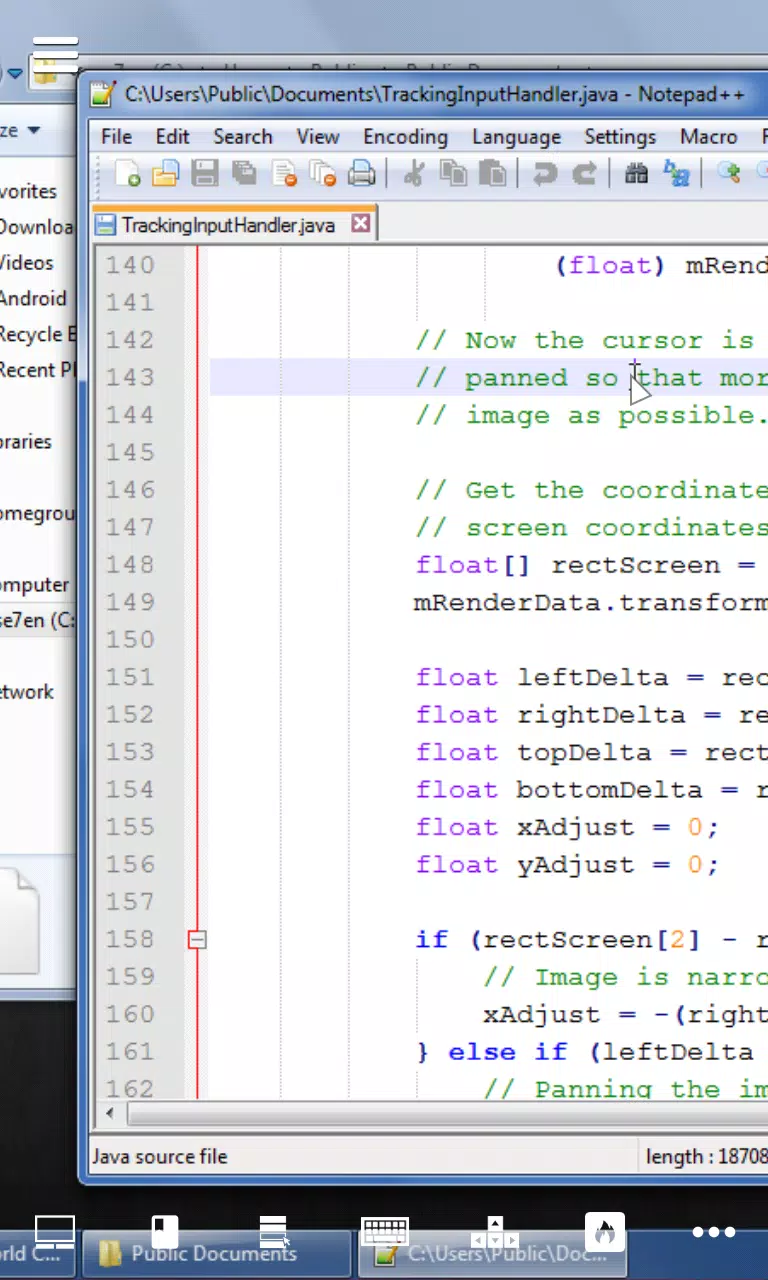
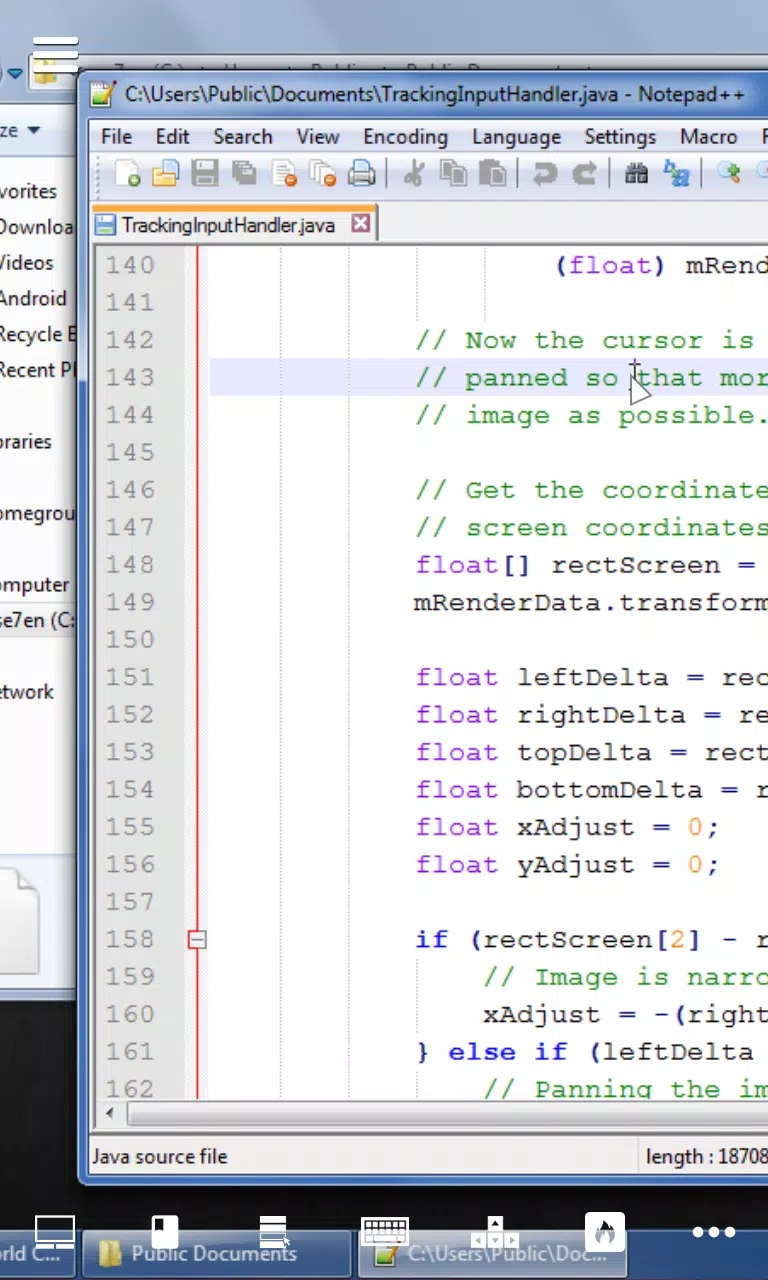
Desktop VNC Viewer lets you control and view your PC desktop directly from an Android device, offering a responsive remote desktop experience tailored for editing text, writing code, and managing files while away from your workstation. Desktop VNC Viewer is designed to reduce input lag by prioritizing local Wi‑Fi connections, and it balances visual fidelity with low latency so longer remote sessions stay productive. The app presents a familiar desktop layout in full‑screen mirror mode, and its configurable pointer and keyboard aids make mobile editing and navigation feel closer to a physical desktop environment.
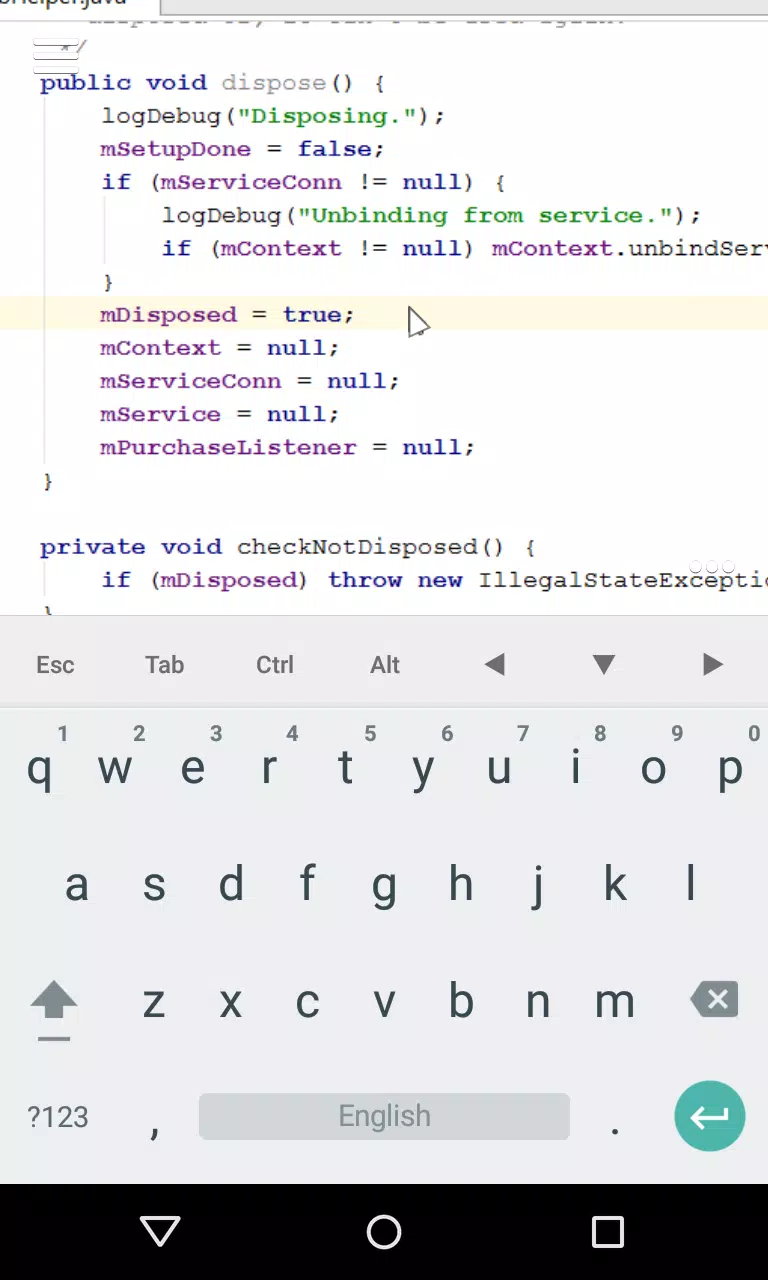
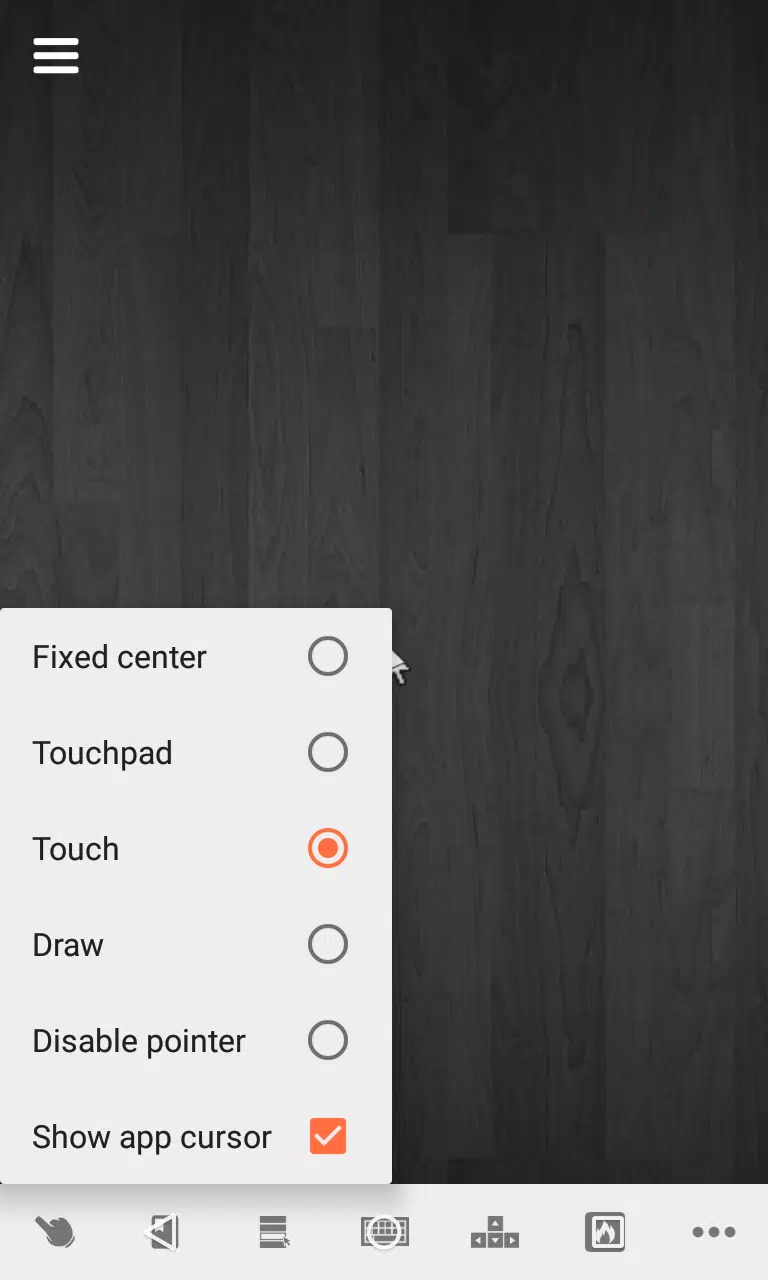
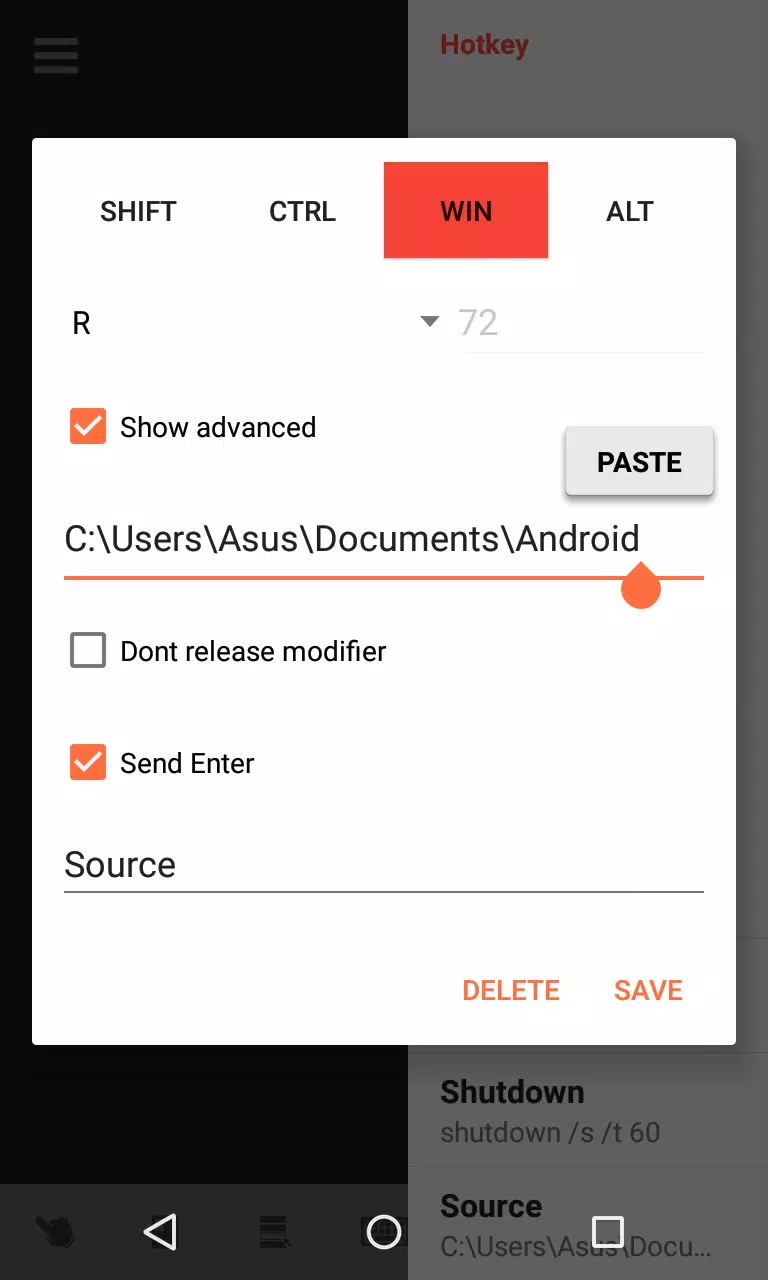
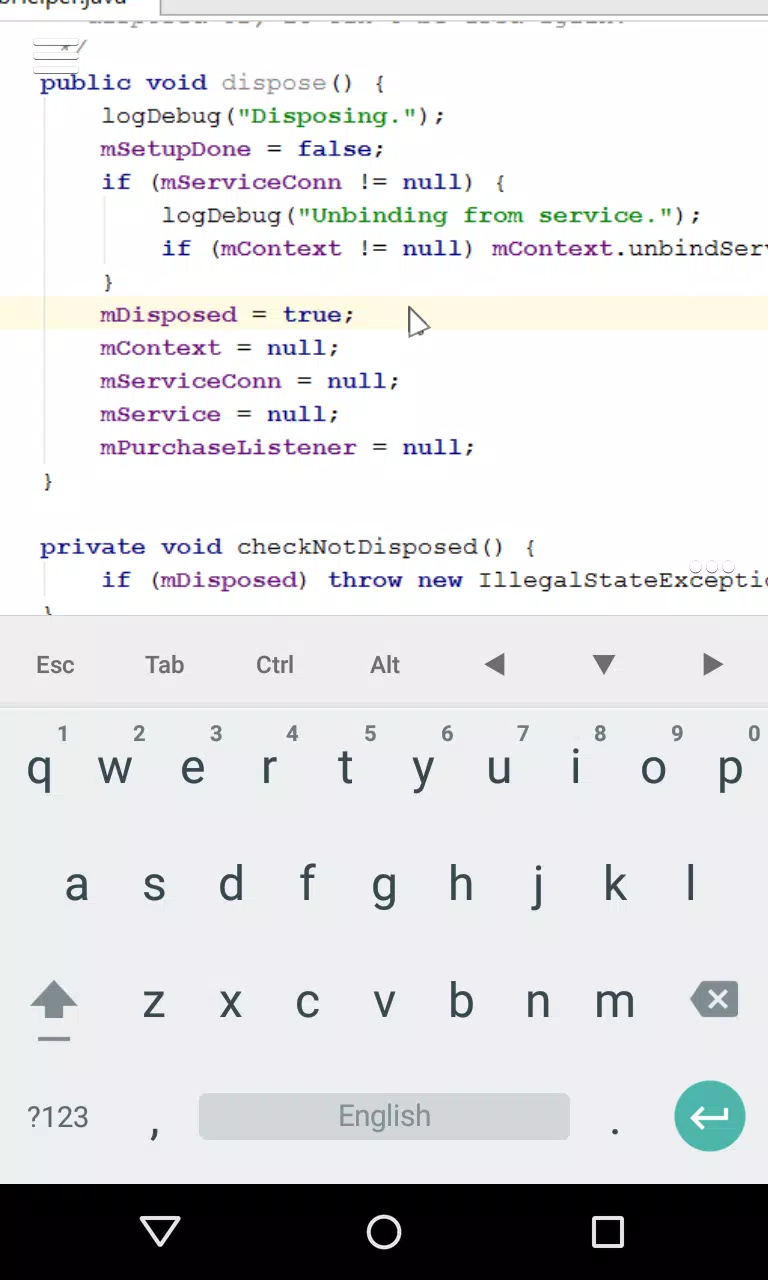
The app provides full‑screen mirroring that preserves desktop visuals for clear remote sessions and a set of four distinct pointer control modes so you can choose the navigation style that best fits mouse‑oriented tasks, touch gestures, or precise text selection. Screen tabs let you flip quickly between remote windows or virtual displays without reopening connections each time, while configurable hotkeys and modifier keys above the virtual keyboard speed up repetitive commands and complex shortcuts. These features are aimed at maintaining continuity when switching between local and remote work, whether you are debugging code, editing documents, or organizing files.
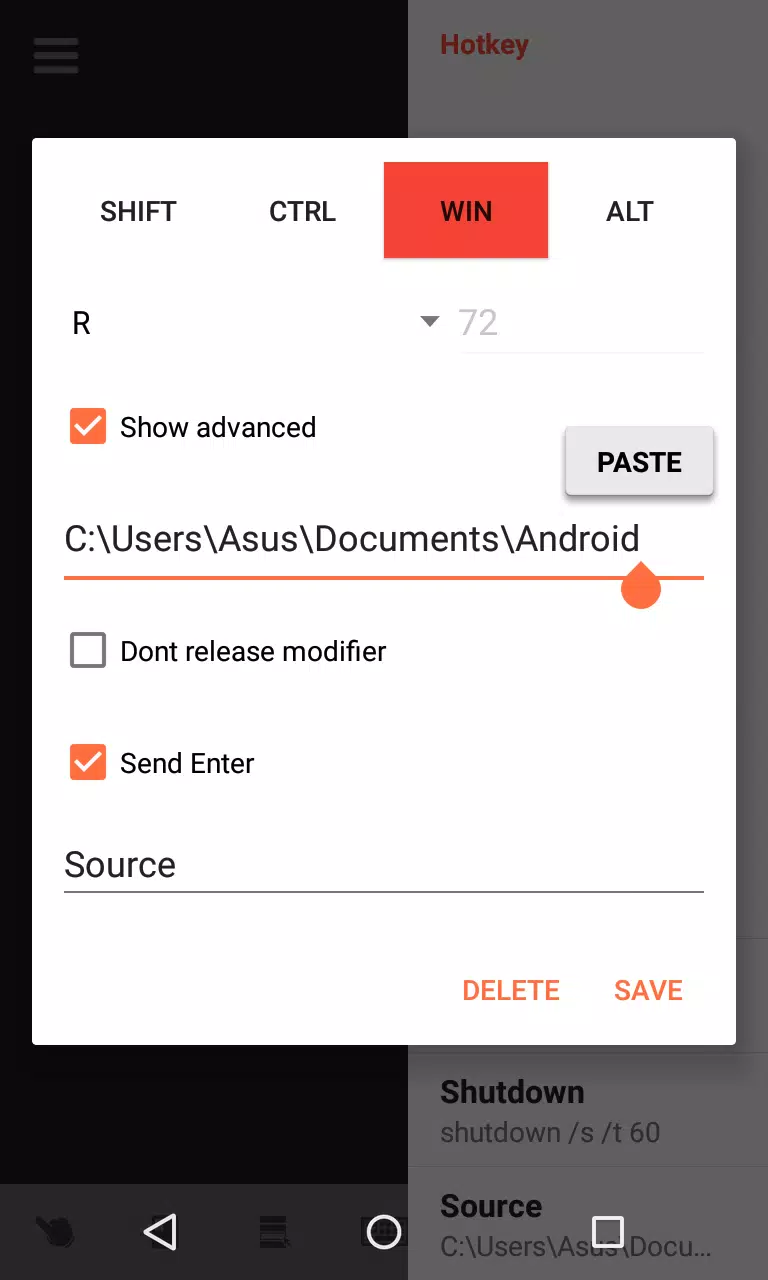
Input methods are central to the experience: Desktop VNC Viewer exposes dedicated arrow keys and modifier buttons above the soft keyboard so you can move the cursor, select text, or issue multi‑key shortcuts without switching layouts. Pointer behaviour can be tuned to emulate direct touch, relative mouse movement, or precise click targeting depending on the task, and hotkey mappings let you trigger frequently used commands from the on‑screen interface. That level of control reduces friction when using development environments, text editors, or terminal windows remotely.
Sessions in Desktop VNC Viewer are structured around fast reconnection and persistent screen tabs, which helps you progress through longer workflows without repeating setup steps. As you use the app more, you can create a routine of connecting to commonly used servers, customizing hotkeys for repeated tasks, and adapting pointer sensitivity for different kinds of work. Rather than a game‑style progression, the app encourages productivity gains through personalization: the more you tune controls and hotkeys to your habits, the faster routine tasks become.
The viewer focuses on preserving desktop clarity while adapting to mobile screens: full‑screen mode scales and centers the remote display, and configurable rendering options help balance image quality and performance. Text remains legible at common zoom levels, and the app avoids aggressive compression that would make precise cursor placement or small UI elements difficult to use. These choices make code, terminal output, and detailed application interfaces easier to read and interact with on a phone or tablet.
Customization is available through pointer modes, hotkey configuration, and keyboard modifiers so users can tailor the interface to their needs. Accessibility considerations include large on‑screen modifier keys and simple pointer options that help users who rely on single‑handed control or assistive input methods. The app aims to reduce barriers by letting you remap frequently used actions and adjust sensitivity rather than imposing one fixed control scheme.
Desktop VNC Viewer is optimized for local network use: it performs best over a shared Wi‑Fi connection that minimizes latency and preserves smooth input/output synchronization. Because the app relies on a VNC server running on the PC, it isn’t intended as an offline standalone tool; however, once the server and network are configured, sessions connect directly across the local network without routing through third‑party servers. Performance will vary if you attempt access across wide‑area or cellular links, and realistic expectations about latency and visual quality help avoid surprises.
To connect you must run a compatible VNC server on the target computer and configure network access and authentication according to your environment. Typical setup steps include enabling the VNC server, confirming local network visibility, and entering the server address and credentials in the viewer. If you encounter input lag or visual stutter, switching pointer modes, lowering image quality settings, or moving both devices to the same Wi‑Fi band can improve responsiveness. Because remote access exposes your desktop, follow standard security practices such as using strong passwords and keeping server software up to date.
Desktop VNC Viewer is not a replacement for native mobile apps; it is best used for remote administration, editing, and occasional access to desktop‑only tools. The app requires a functioning VNC server and appropriate network access, so it is most effective for users who can configure their PC and local network. For routine productivity tasks, remote debugging, and quick file edits, the viewer delivers a practical, flexible solution that brings desktop capabilities to Android with low latency and useful input aids.
File size: 4.30 M Latest Version: 1.7.3
Requirements: Android Language: English
Votes: 324 Package ID: nine.viewer
Developer: 16nine
Must Have Tools Apps for Android
Equip yourself with our all-in-one toolbox app for everyday tasks and projects. Instantly convert between units, calculate tips, scan documents, manage files, and more with handy productivity tools. Includes a level, compass, QR code reader, ruler, speedometer, decibel meter, and flashlight. Save frequently used tools to your customizable dashboard for one-tap access. Track billable hours, wages, budgets, and invoices. Annotate screenshots, magnify labels, and sign PDFs on the go.





LIVE A HERO
Retro Hero Mr Kim
Empire of Passion
Arcane Quest Legends
Magic Snap: Momotaro
AllStar Manga Heroes
Lunescape
ONE PIECE Thousand Storm JP
Tap Titans 2